
A highlight video is easier to evaluate when the link works, loads quickly, and takes a coach straight to your film.
Make your highlight link easy to open
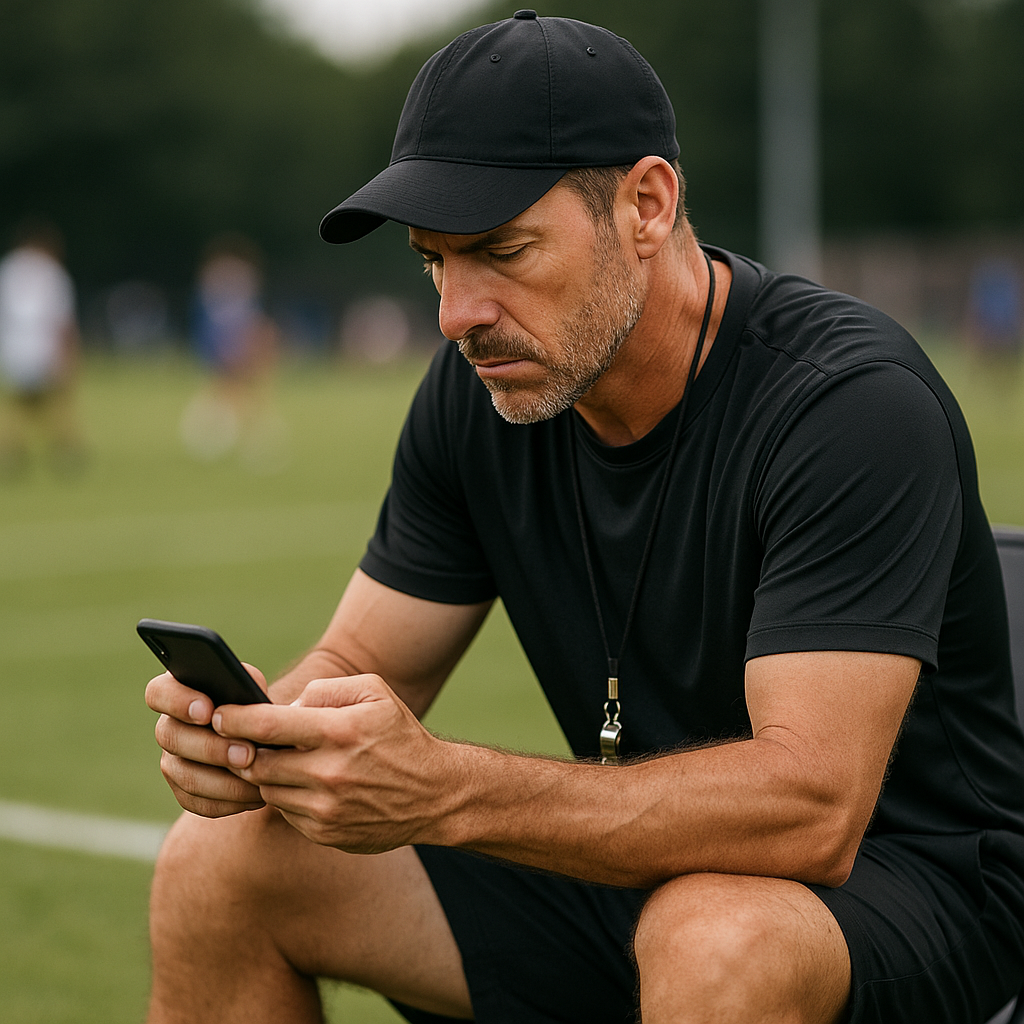
I watched a coach scroll through DMs on a phone between sessions at a showcase. Anything that didn't open cleanly added another step between the coach and the film.
That makes the link itself worth paying attention to, especially when you're sharing film through Instagram, X, email, or text. If a Google Drive video requires permission, a private YouTube video requires an account, or a TikTok post makes the coach hunt for the actual play, you've added an extra step. The goal is to make the film easy to review.
An unlisted YouTube video is a straightforward option because you can share the link without posting it to your public channel. An unlisted video is different from a private one: anyone with the link can watch it, and viewers don't need a Google account. A public video can appear in YouTube search and on your channel, while an unlisted video doesn't appear in search or your channel's Videos tab.
Two details worth getting right are the thumbnail and the opening few seconds. Pick a thumbnail that isn't a black frame or a huddle. Then make the opening obvious: a one-line title card with your name, grad year, position, and jersey color is enough. After that, go straight to a play. If your first clip takes 20 seconds to start because it's a slow pan across the field, you're making the coach wait before they can see the play.
Stop posting the whole game and calling it a highlight
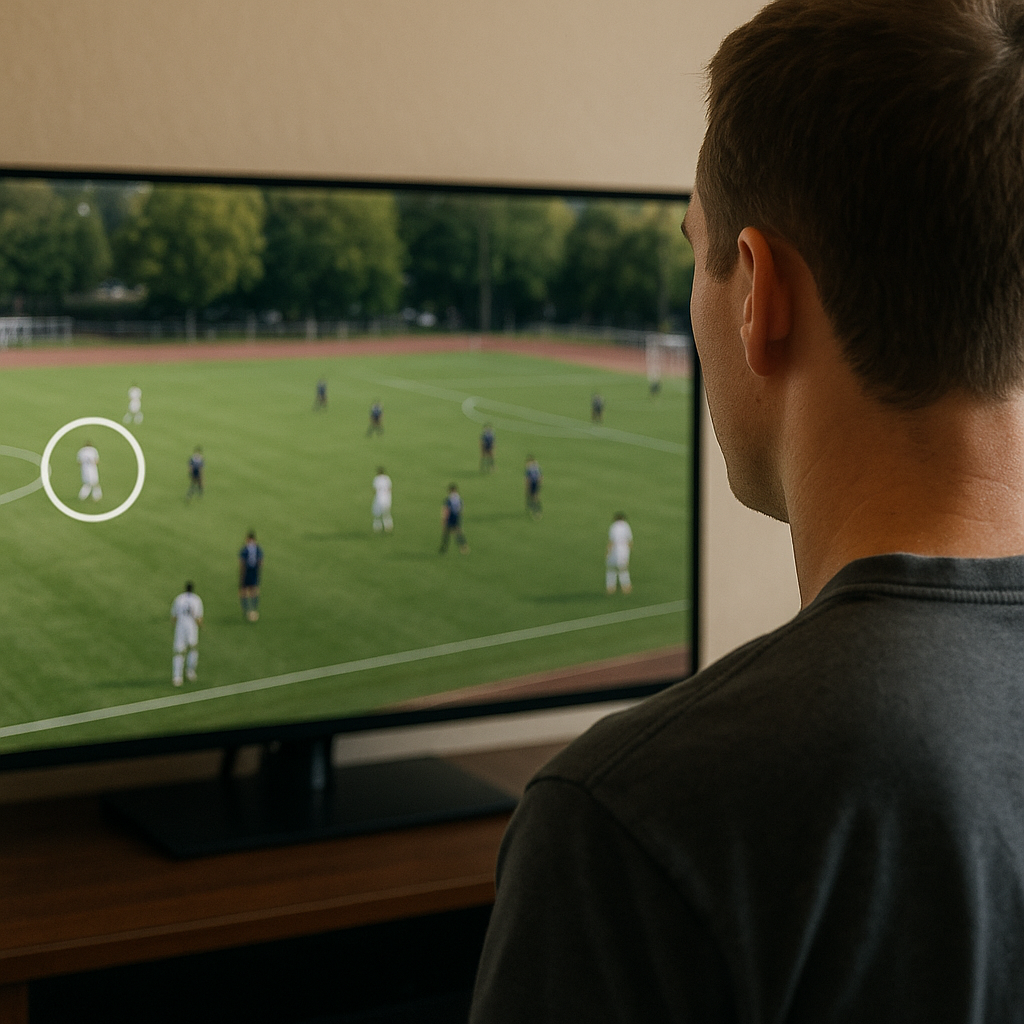
I've watched plenty of so-called "highlights" that are really long stretches of game footage with the best plays buried somewhere in the middle. If the footage was filmed from the bleachers, you may have a lot of game footage, but you still need to give the coach some direction. A coach reviewing several athletes may not have time to search through a full quarter for the relevant plays.
On social, the problem isn't just length. It's context. A great outside-back clip can look like nothing if the camera is zoomed out and your movement is off-ball. A dominant D-mid sequence can look like jogging if the viewer doesn't know what the assignment was. So you have to build the context into the edit without turning it into a lecture.
A simple structure is:
- One play per clip, not a montage that changes angles every two seconds.
- 3 to 5 seconds of lead-in so the coach sees the setup (spacing, matchups, where you start).
- Freeze frame + circle for one beat at the start only, then let it run at full speed.
- One label line: "#12 in white, left wing" or "slot WR, top of screen."
If you have Hudl, great, use the share link and keep the cut-ups tight. If you don't, you can still do this with CapCut or iMovie on your phone in one sitting. It's also worth giving each clip a specific title. "Junior year stuff" isn't a title. "2026 | 2H | Press break vs Central" is a title. A specific title also makes the clip easier to identify later.
Your social feed matters here, too. If your highlight is buried among unrelated posts, pin it so a coach can find it easily and keep the caption straightforward. Put the contact info where someone can copy it without zooming.
Keep your public recruiting posts clean
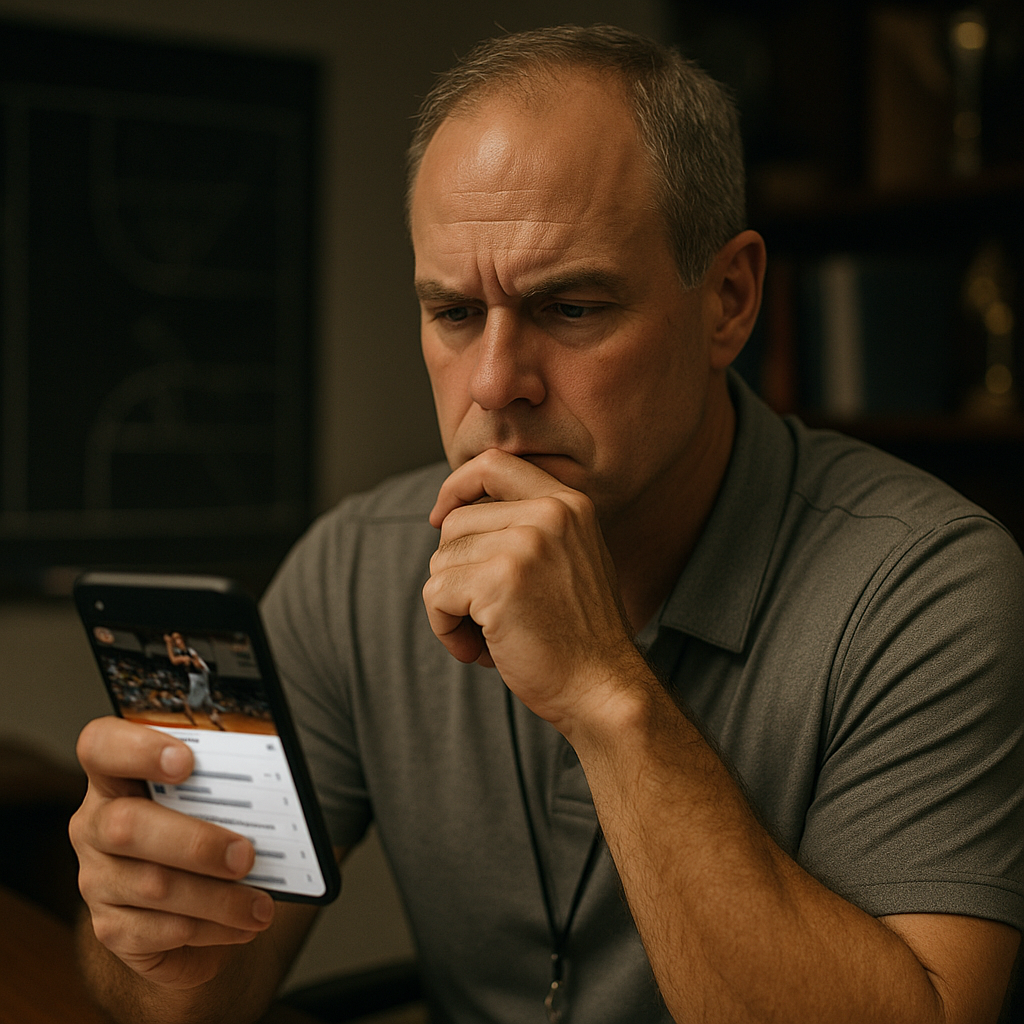
Social media can put your highlight alongside the rest of your public profile, including your username, reposts, captions, and comments.
Public arguments, hostile comments, or posts about opponents can distract from the information a recruiting post is meant to share. If your highlight post turns into a fight in the replies, the argument can become part of the public profile a coach sees.
Not every comment under a recruiting post will come from the athlete. Teammates, relatives, or strangers can add comments, but those comments still appear alongside the athlete's video.
Three ways to manage the comments:
- Turn on comment filters for obvious slurs and profanity, and block certain keywords that always spiral (refs, rigged, trash, etc.). It won't catch everything, but it can help reduce unwanted comments.
- Don't clap back. If you can't ignore it, delete the comment and move on. Deleting the comment at least keeps the argument from continuing under your post.
- Keep your caption plain. Keep the caption short and focused on the information a coach actually needs.
One more nuts-and-bolts thing that matters more than people admit: tags. Tag only the accounts that are directly relevant to the post, such as your club, high school, or tournament. The goal is to make the post easy for a coach to find and understand.